 bussin
Technical Reference Guide
Dead-Letter Queue (DLQ) Inspection and Recovery
Azure Service Bus incorporates automatic, secondary storage containers known as Dead-Letter Queues (DLQ) designed to isolate malformed, expired, or unprocessable messages. Unlike active queues, dead-letter entities are system-generated sub-queues that do not support standard time-to-live expirations and require manual administrative action. This guide details standard dead-letter triggers, payload mutations during manual replays, and Bussin's safe background recovery mechanics.
Common Dead-Lettering Triggers
Messages transit to the DLQ sub-queue (identified by the `$DefaultDeadLetterQueue` path suffix) due to specific broker-enforced conditions. The broker appends error diagnostic fields directly to the message's header:
| Broker Reason Code | Technical Root Cause | Standard Remediation Strategy |
|---|---|---|
| `MaxDeliveryCountExceeded` | The message was locked and abandoned (or crashed) more times than the queue's `MaxDeliveryCount` setting allows. | Verify consumer code exceptions, resource connections, or check for transaction lock expiry timeouts. | `TTLExpiredException` | The message's `TimeToLive` window expired while residing in the active queue before a consumer pulled it. | Analyze downstream consumer capacity and throughput constraints, or adjust system TTL policies. |
| `SubscriptionRuleEvaluationException` | The topic filter rule failed during SQL parsing or evaluation on incoming metadata. | Validate filter formats and inspect incoming user properties to guarantee compatibility with SQL rules. |
| `HeaderSizeExceeded` | The total byte footprint of custom user properties exceeded maximum limits. | Prune user-defined header collections or offload heavy metadata parameters directly into the message body. |
Zero-Loss Recovery: Dynamic Depth-Locking
When executing mass message transfers or purges from a DLQ, traditional administrative utilities run risks of timing out, locking UI threads, or suffering data loss due to lock expiration. Bussin implements a specialized, multi-stage recovery architecture:
- Automated Dynamic Depth-Locking: To guarantee that no messages are dropped during a move, Bussin evaluates queue metrics and dynamically updates consumer lock allocations in real-time. This prevents lock timeouts on active transfers even when network speeds fluctuate.
- Payload and Metadata Mutation: Developers can inspect failed messages, edit JSON or XML bodies directly in the browser editor, and alter system or user headers (e.g., removing the `DeadLetterReason` keys) to prevent re-triggered failures downstream.
- Non-Blocking AMQP Pipelining: Safe background workers execute concurrent send-and-complete processes. You can monitor progress meters in the console while continuing other diagnostic operations in distinct browser blades.
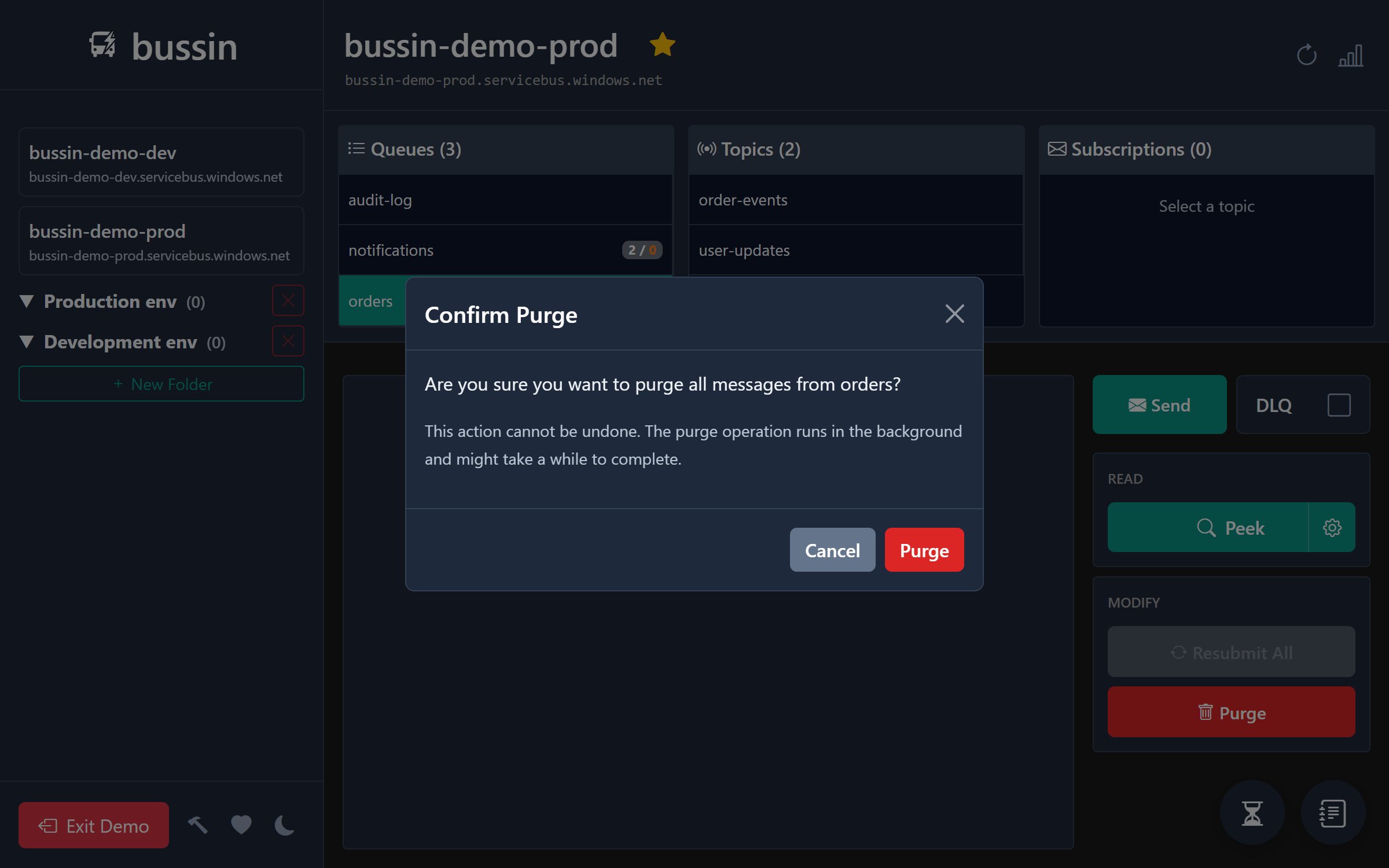
Step-by-Step DLQ Replay Workflow
Administering a manual recovery operation inside Bussin follows a clean, deterministic transaction flow:
1. Select target queue or subscription `$DefaultDeadLetterQueue` sub-entity
2. Execute peek to populate active dashboard with failed messages
3. Open target message to analyze `DeadLetterReason` and `DeadLetterErrorDescription`
4. Choose "Resubmit":
   a. Modify JSON payload payload body if required
   b. Reset, edit, or append user-defined properties
   c. Select target active queue or custom destination
5. Execute: Background worker publishes to target, then issues complete to DLQ
Next Steps
Further develop your cloud-native messaging practices by reviewing Peek-lock state management, inspect active routing hierarchies in Topic and subscription monitoring, or define AMQP parameters in our Dead-letter glossary.