 bussin
Azure Service Bus Dead-Letter Queues (DLQ)
Every queue and subscription in Azure Service Bus has a secondary, system-managed sub-queue called a dead-letter queue (DLQ). The DLQ stores messages that cannot be successfully delivered or processed by consumers. Understanding the root causes of dead-lettering helps you resolve pipeline failures.
Common Causes of Dead-Lettering
Azure Service Bus automatically routes messages to the DLQ when certain conditions are met:
1. Max Delivery Count Exceeded
When a consumer locks a message but fails to complete or abandon it successfully, the broker releases the lock and increments the message's delivery count. If this count exceeds the queue's configured MaxDeliveryCount (default is 10), the message is dead-lettered with the reason: MaxDeliveryCountExceeded.
Common cause: Consumer application crashes, runs into unhandled exceptions, or times out during processing.
2. Time-To-Live (TTL) Expiration
If a message remains in the active queue longer than its configured Time-To-Live (TTL) duration, and dead-lettering on expiration is enabled (EnableDeadLetteringOnMessageExpiration), the message is moved to the DLQ with the reason: TTLExpiredException.
Common cause: Consumer service downtime or message backlogs leading to slow processing rates.
3. Explicit Application Dead-Lettering
Consumer applications can explicitly move a message to the DLQ by calling the settlement action. This is useful when the message body contains malformed JSON/XML, fails business validation, or is otherwise unprocessable.
Common cause: Data schema mismatches or invalid input data.
4. Header and Metadata Size Exceeded
If the cumulative size of a message's custom properties and headers exceeds the protocol limits, Azure Service Bus moves the message to the DLQ.
Inspecting and Replaying DLQ Messages
Unlike active queues, where consumers actively pull messages, the dead-letter queue is a storage area. Inspecting it requires peeking or locking messages to determine why they failed, and then resubmitting them once the consumer or payload issue is fixed.
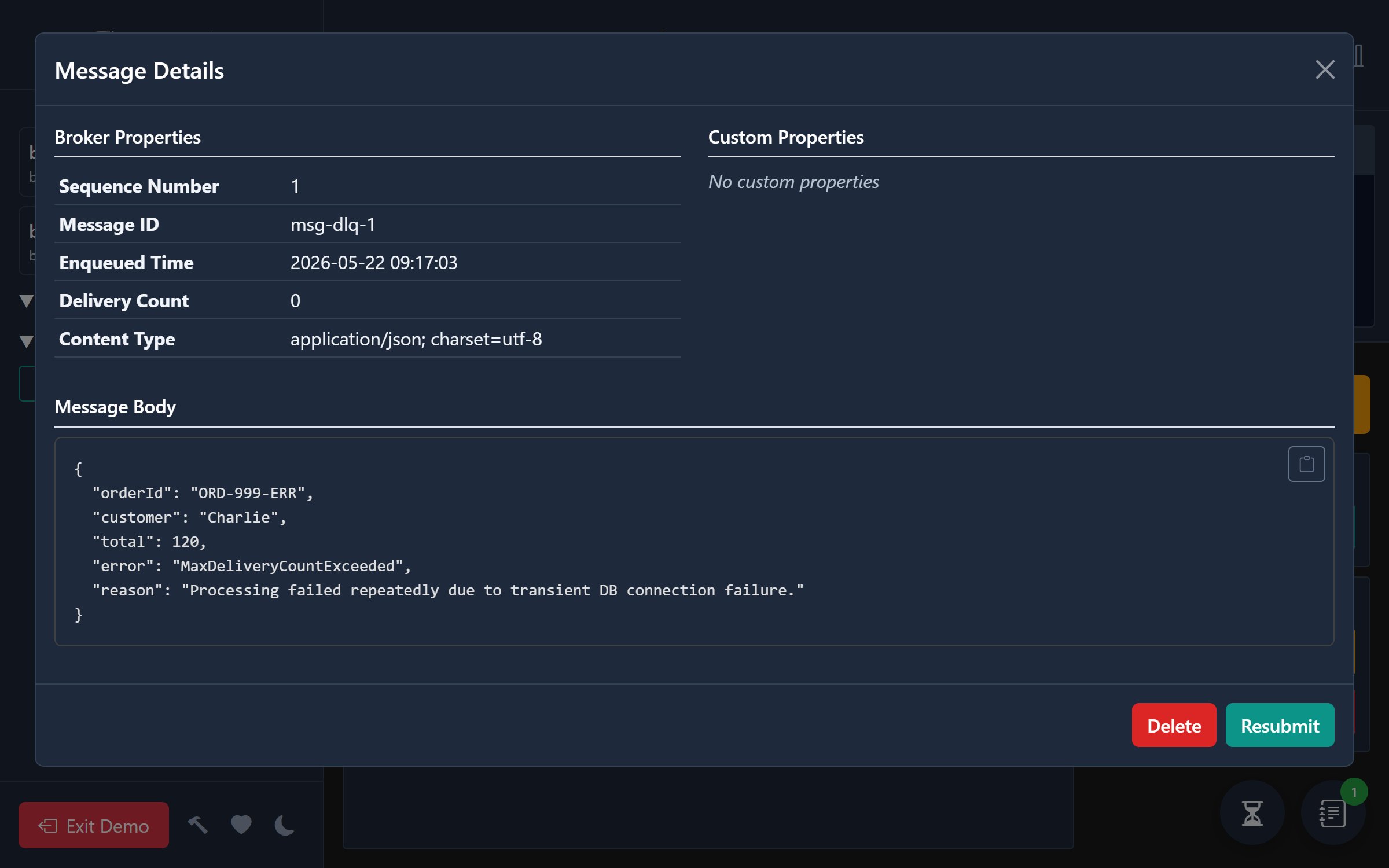
Bussin makes managing dead-letter queues straightforward:
- View Dead-Letter Details: Read the error reasons (like
MaxDeliveryCountExceededor custom application errors) and dead-letter descriptions directly in the UI. - Pay-Load Inspection: Preview JSON or plain text bodies in your browser memory without altering the message's state on the broker.
- Replay and Resubmit: Resubmit failed messages back to the active queue individually or in batches to retry processing after resolving consumer issues.
- Safe Purges: Clear corrupt or unrecoverable DLQ backlogs in the background with real-time progress indicators.